
KDP publishing guide
How to review and improve a generated coloring book
A real page-review walkthrough: find illustration mistakes, revise pages in Studio, and prepare the final paperback files.
Published by KDP Maker
Last reviewed: October 2, 2026. Verify requirements in Amazon KDP before publishing.
1. Judge the illustration at its actual size
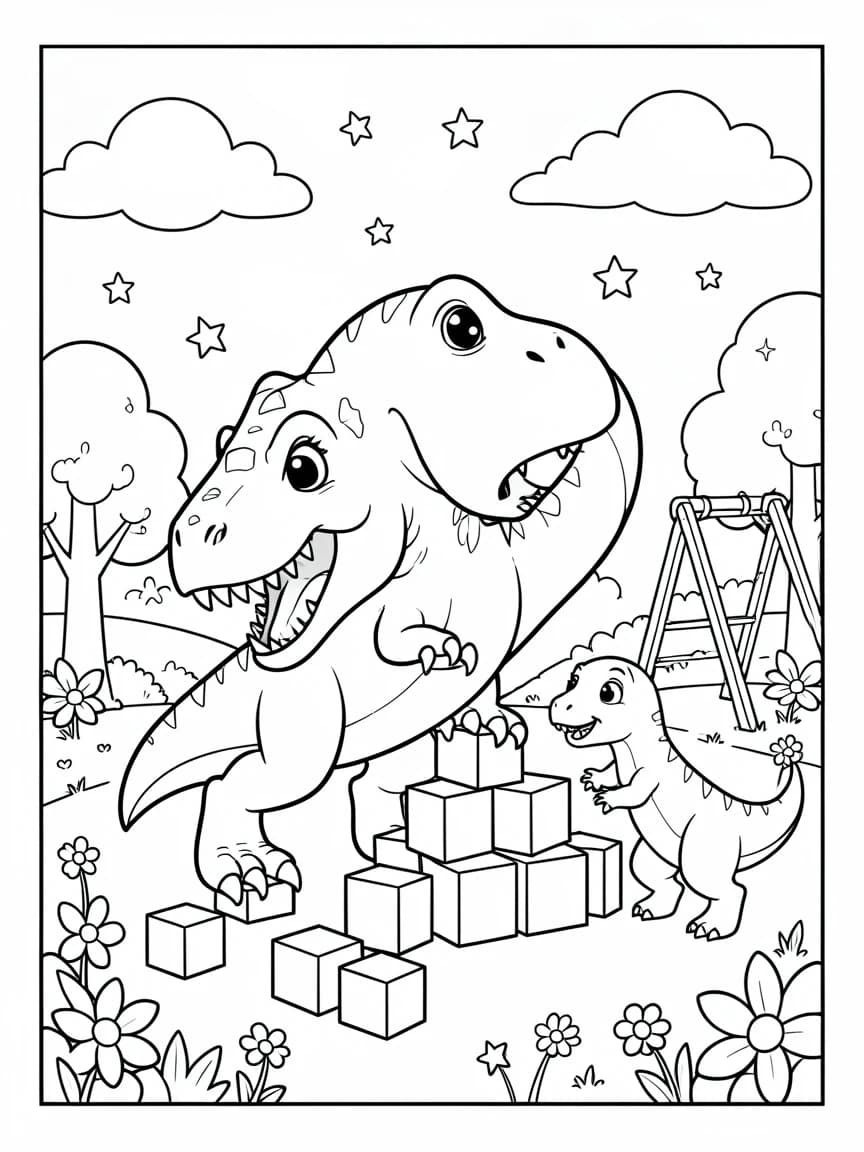
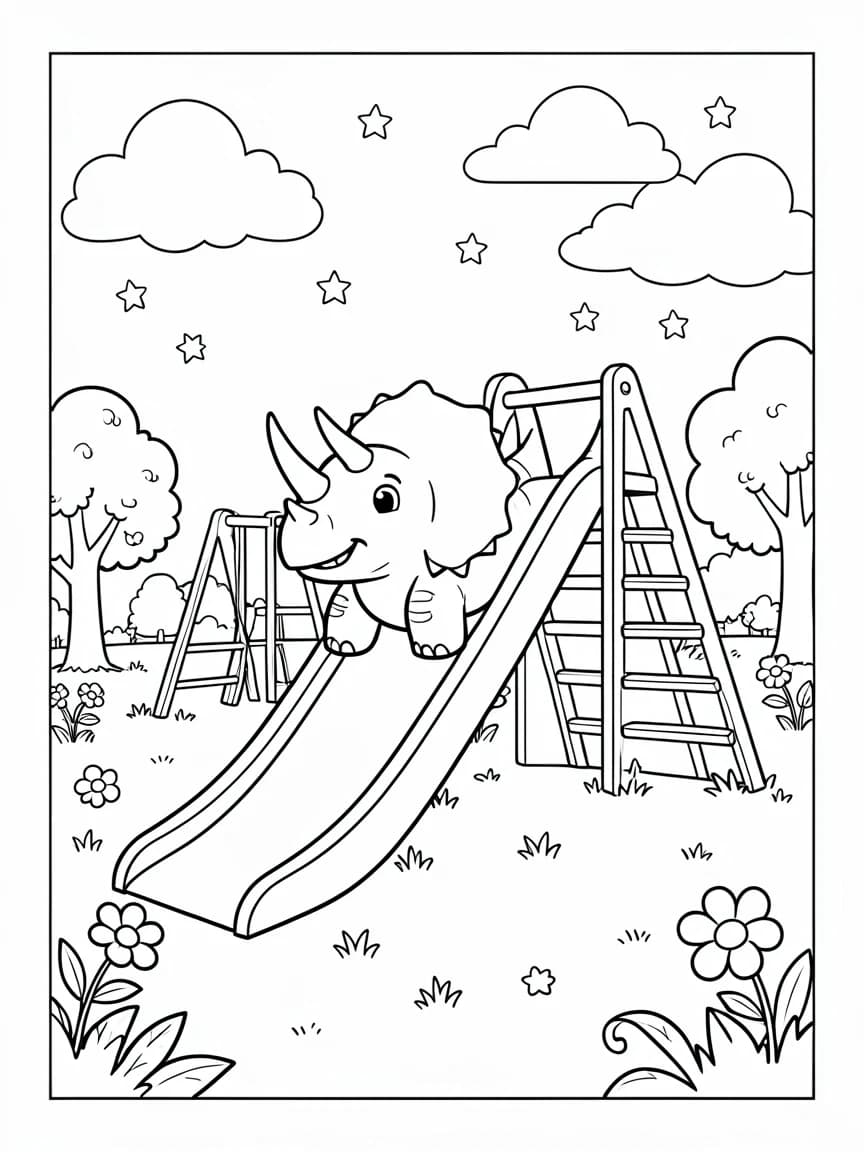
Look for recognizable subjects, separated body parts, enclosed coloring areas, consistent line weight, and small details your audience can color. Check fingers, faces, repeated objects, borders, and stray marks. An attractive thumbnail can hide a problem.
2. Use Studio’s review queue
Select Needs revision for a problem page. Describe one specific change, or attach your own reference image. Apply the edit, compare the result, and restore a previous version if needed. Mark the page reviewed when it meets your standard. Any content change resets its review so the final pass stays current.
Use the Not reviewed filter to finish the remaining pages. Arrow keys move between pages; Fit page and Safe Margins help you inspect the full layout. On a smaller screen, switch between Pages, Canvas, and Edit.
3. Check the actual PDF and matching cover
Confirm trim size, final page count, ink and paper, image resolution, and bleed. Compare the wrap measurements with Amazon’s official cover calculator. The cover must reflect your final interior page count.
An automated report checks technical details. Your review checks drawing quality, readability, originality, and rights. Upload the final files to KDP Print Previewer and review its alerts before publishing.
Open the publishing tools →4. Reuse the look for your next book
In creation, choose a generated book under Visual style. It uses a page from your own library as a reference while keeping the new subject you describe. Review consistency across the new pages; a reference guides the look rather than promising identical output.
Need help? support@kdpmaker.app.